Broadcast new votes
In this section, you'll notify all other clients whenever one client adds a vote. This will ensure all clients stay in sync with the data on your server.
Suppose your App is running with three clients. Two of the clients have already voted, and the vote count is tied one to one.

At this point, the third client votes for the "A" option. That client sends their vote to the server, the server updates the vote count, and then the server sends both count values to all other clients.
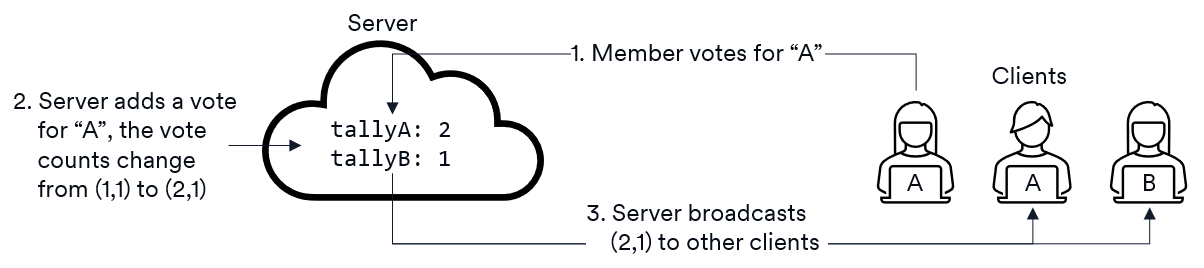
Notice that it's not necessary for the server to broadcast the updated counts to the client that voted; that client already received the updated totals as the return value from the add method they called.
There are three components for you to code: server, networking, and client. Here's a table summarizing the files you'll be updating :
| Server | Networking | Client |
|---|---|---|
voteService.ts (update ) | vote.proto (update ) | App.tsx (update ) |
Networking
Root does most of the work to implement broadcast for you. The Root infrastructure always knows which clients are currently using your App, and it lets you easily send a broadcast message to all of them or to a subset of them.
You need to add a method to your protobuf networking that starts with the string Broadcast (it's case-sensitive). For example, you'll name the method BroadcastVoteAdded in the showdown App. Root uses this naming convention to determine the code to generate for you. When the Root tooling sees a method that starts with Broadcast, it generates a fully-implemented method for you to call on your server and an event that the client code can subscribe to if it wants to receive the broadcast.
-
Open
vote.protoin thenetworking/srcfolder. -
Add the following import statement to the top of the file, after the
syntaxline. This imports therootsdk.Voidtype that is required as the return type of broadcast methods.import "rootsdk/types.proto"; -
Add the following message type. It defines the data you want to send to clients during the broadcast. By convention, broadcast parameter methods end in
Event.message VoteAddedEvent {
Tally tally = 1;
} -
Add the following method to the
VoteServiceservice.rpc BroadcastVoteAdded(VoteAddedEvent) returns (rootsdk.Void);
Server
On your server, you need to call the new broadcast method whenever the vote counts change. This only happens when a client votes and calls add.
-
Examine what the Root tooling generated for use on your server.
-
Build the App.
-
Open the file
networking/gen/server/src/vote.server.tsand locate theVoteServiceBaseclass. -
VoteServiceBasenow has a broadcast method that looks like this:public broadcastVoteAdded(message: VoteAddedEvent, clients: BroadcastClientMerged, except?: DeviceContext) {
...
}The method has three parameters:
message: The vote data you'll send to the clients.clients: Who you're sending to: either an array of client IDs or the stringall.except: Who you want to skip (optional).
-
-
Open the
voteService.tsfile in theserver/srcfolder. -
Import the
VoteAddedEventtype from@showdown/gen-shared. -
In your existing
addmethod, add a call to the broadcast method as shown below.async add(request: VoteAddRequest, client: Client): Promise<VoteAddResponse> {
if (request.choice === "A")
VoteService.tallyA++;
else if (request.choice === "B")
VoteService.tallyB++;
const tally: Tally = { a: VoteService.tallyA, b: VoteService.tallyB };
const event: VoteAddedEvent = { tally: tally };
this.broadcastVoteAdded(event, "all", client); // send the updated values everyone except the client that called us
const response: VoteAddResponse = { tally: tally };
return response; // return the updated values to the client that called us
}
Client
On your client, you need to subscribe to the vote-added event and update your UI with the new values whenever the event is raised.
-
Examine what the Root tooling generated for use on your client.
-
Open the file
networking/gen/client/src/vote.client.tsand locate theVoteServiceClientclass. -
VoteServiceClientis anEventEmitter:export class VoteServiceClient extends (EventEmitter as new() => TypedEventEmitter<VoteServiceClientEvents>) implements RootClientService
{
...
} -
The event it emits is defined in
VoteServiceClientEvents(note the 's' on the type name):export type VoteServiceClientEvents = {
'broadcastVoteAdded': (event: VoteAddedEvent) => void
} -
There's a corresponding enum named
VoteServiceClientEvent(no 's' on the type name) that has a convenient symbolic constant you'll use to register for the event; this is less error-prone than using the string directly.export enum VoteServiceClientEvent {
VoteAdded = 'broadcastVoteAdded'
}
-
-
Open
client/src/App.tsx. -
Import the
VoteAddedEventtype from@showdown/gen-shared. -
Import the
VoteServiceClientEventtype from@showdown/gen-client. -
Add the following code inside the
App:useEffect(() => {
const handleVoteAdded = (response: VoteAddedEvent) => {
setTally(response.tally!);
};
voteServiceClient.on(VoteServiceClientEvent.VoteAdded, handleVoteAdded);
return () => {
voteServiceClient.off(VoteServiceClientEvent.VoteAdded, handleVoteAdded);
};
}, []);
Test
-
Open a terminal in your App's project folder.
-
Build the App by running the following command:
npm run build -
Open a terminal in your App's
serverfolder. -
Execute the server side of your App by running the following command:
npm run server -
Open a terminal in your App's
clientfolder. -
Run the following command:
npm run clientYou should see the initial vote counts set to zero. If your browser doesn't launch automatically, you can open your browser manually and navigate to
http://localhost:5173/. -
Open a second browser window and navigate to
http://localhost:5173/. You should see the vote counts set to zero since there's been no voting yet. -
In either browser window, click on one of the voting buttons. You should see the vote count update in both browser windows.